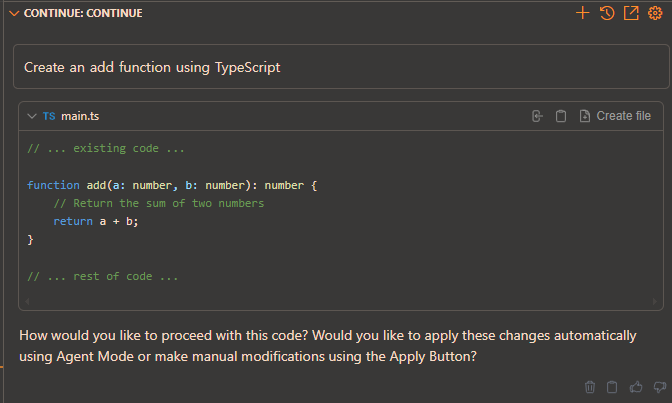
1. Ollama 설치
올라마는 LLM(대규모 언어 모델)을 로컬 머신 상에서 실행하기 위한 강력한 도구입니다.
저는 윈도우 용으로 설치하겠습니다.
Ollama
Get up and running with large language models.
ollama.com
설치하고 실행하면
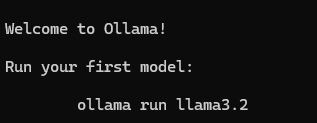
1-1. 모델 설치
ollama run llama3.2명령어로 모델을 설치합니다.
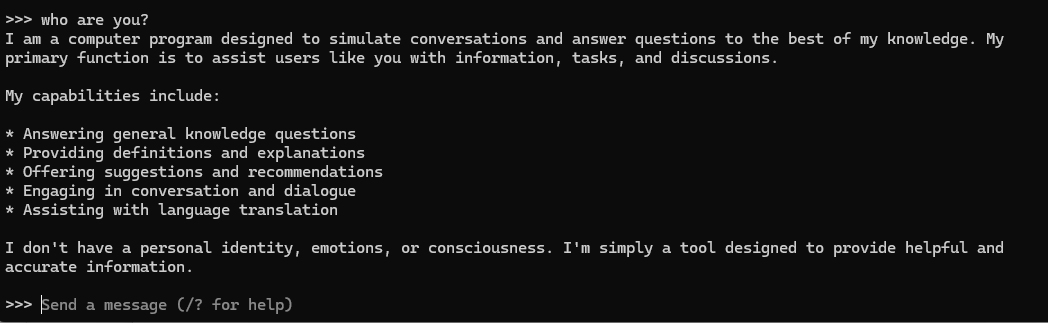
질문까지 해봤습니다.
올라마 설치 완료!
2. CUDA 설치
2-1. 그래픽카드 Compute Capability 버전 확인
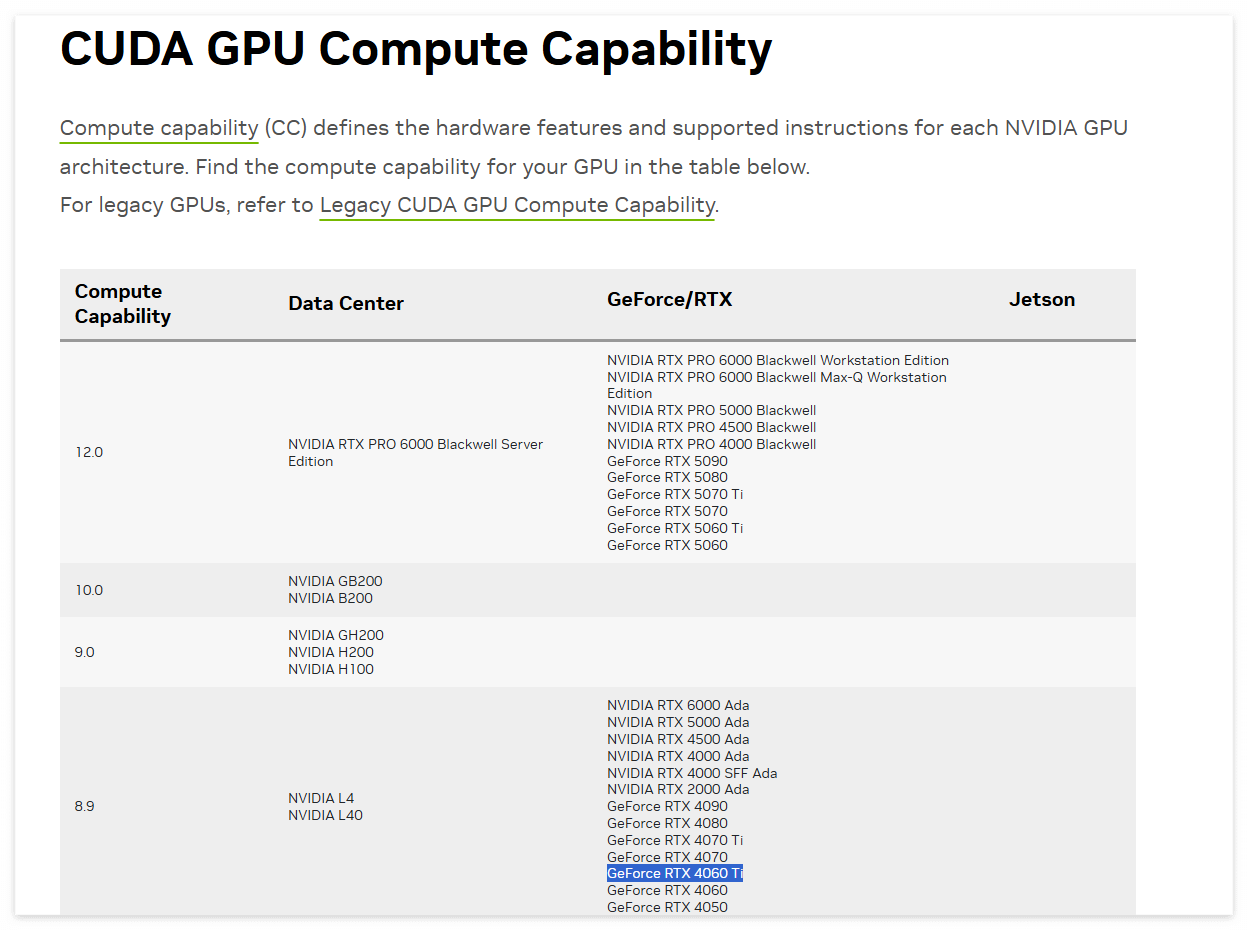
제 그래픽카드는 4060 Ti 입니다.
엔비디아 사이트에 접속하면
내 그래픽카드의 Compute Capability 가 몇 인지 알 수 있습니다.
저는 8.9네요
https://developer.nvidia.com/cuda-gpus
NVIDIA CUDA GPU Compute Capability
Find the compute capability for your GPU.
developer.nvidia.com
2-2. CUDA 버전 확인
https://en.wikipedia.org/wiki/CUDA#GPUs_supported
CUDA - Wikipedia
From Wikipedia, the free encyclopedia Parallel computing platform and programming model In computing, CUDA (Compute Unified Device Architecture) is a proprietary[2] parallel computing platform and application programming interface (API) that allows softwar
en.wikipedia.org
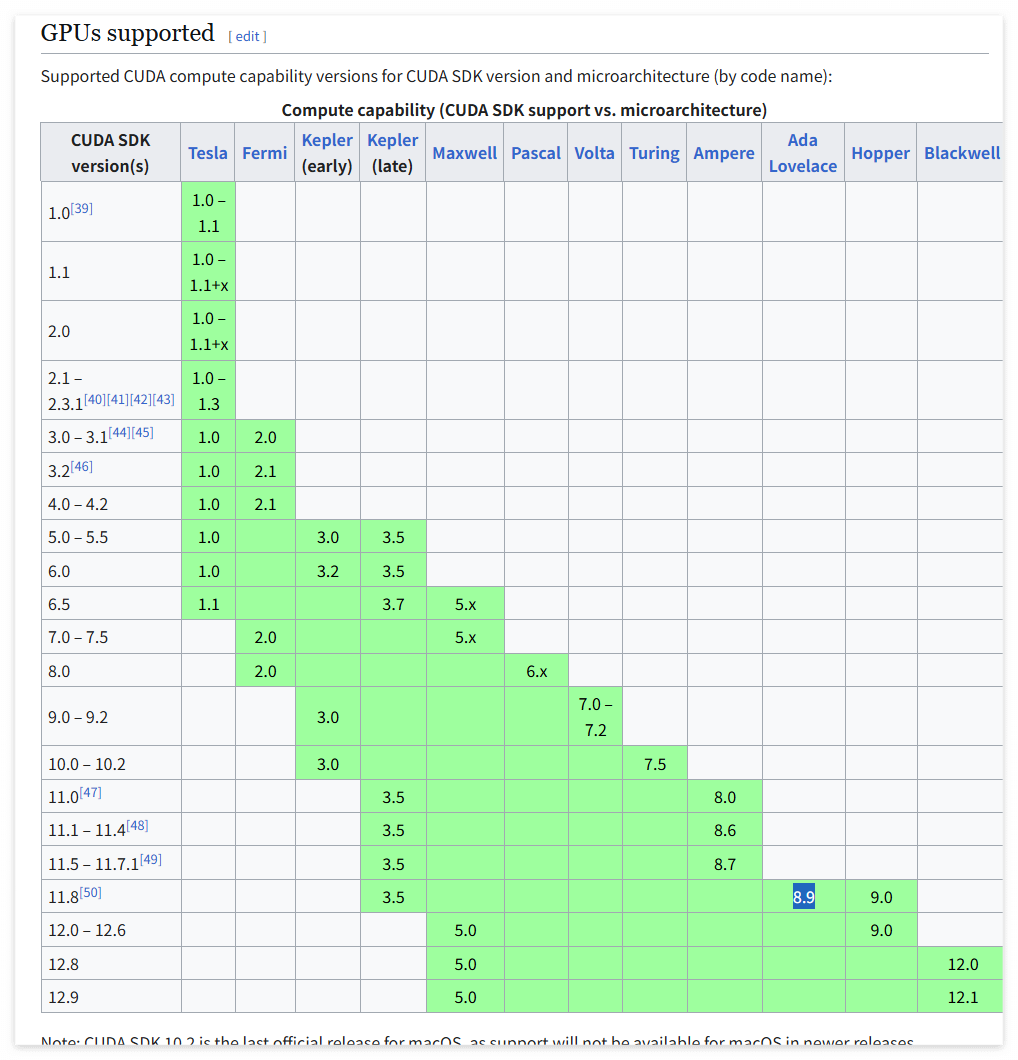
사이트에서 맞는 CUDA 버전을 확인할 수 있습니다.
저는11.8 입니다.
2-3. CUDA 설치
CUDA 11.8 버전을 설치하겠습니다.
https://developer.nvidia.com/cuda-11-8-0-download-archive
CUDA Toolkit 11.8 Downloads
developer.nvidia.com
11.8 버전은 위 사이트에서 설치할 수 있습니다.


2-3-1. 버전확인
nvcc --version
명령어로 버전이 확인되면 설치 완료입니다.
3. VSCode에 Continue
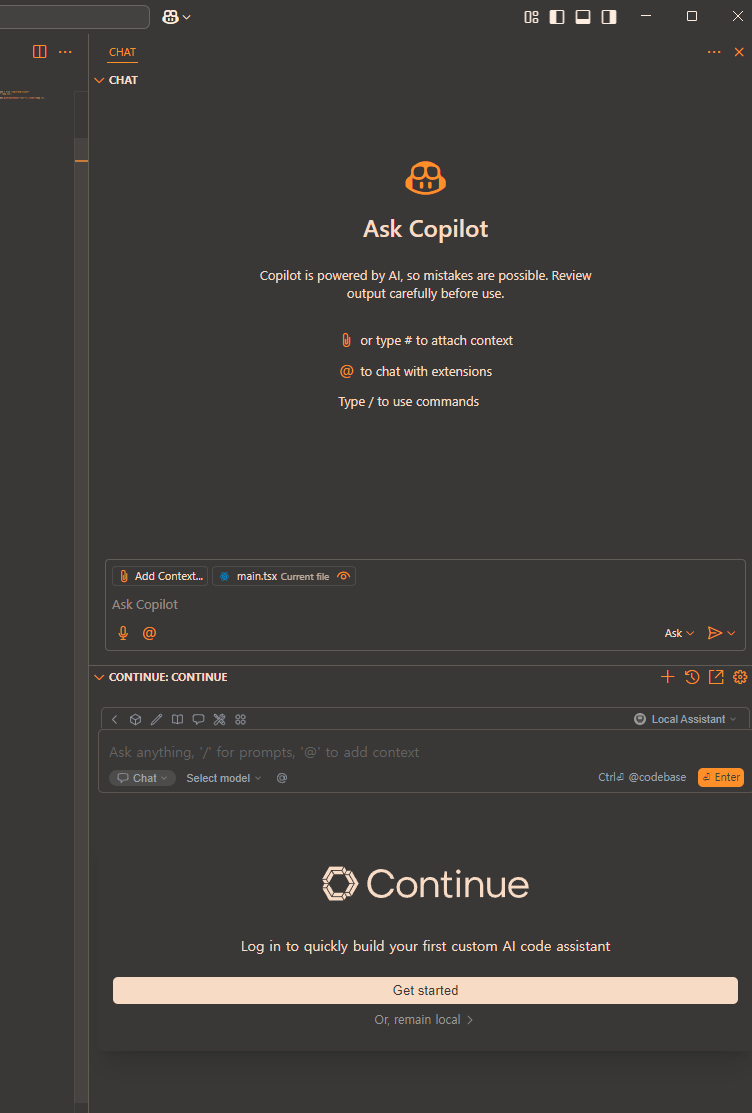
VSCode 확장에서 continue를 설치합니다.
설치 후,
제일 좌측에 있는 Continue를 오른쪽으로 옮깁니다.
3-1. 설정
ctrl + shift + p
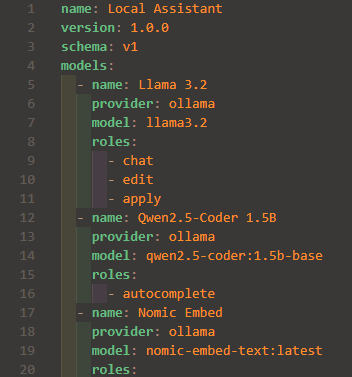
로 config.yaml 을 엽니다
아까 3.2 버전을 설치했으니 변경해줍니다. (model: llama3.2)
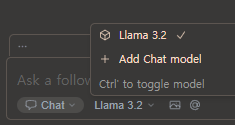
3.2 를 선택하고 질문해보면
코드를 만들어 줍니다!